


Securly Home
4.4225.00 Reviews
App Specs
- Version
- 5.7.1
- Updated On
- License
- Free
- Downloads
- 100,000+
- Developer
- Securly Inc.
- Categories
- Parenting
- Platform
- Android, iOS
Screenshots
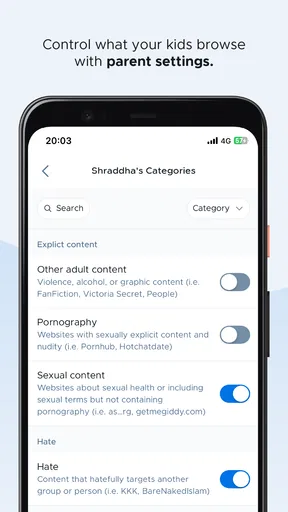
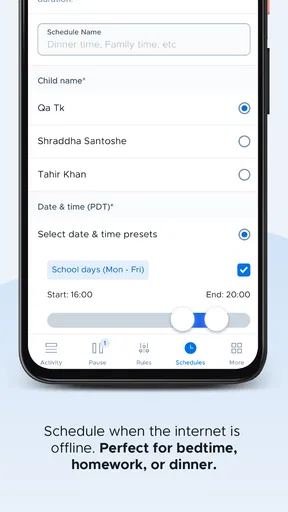
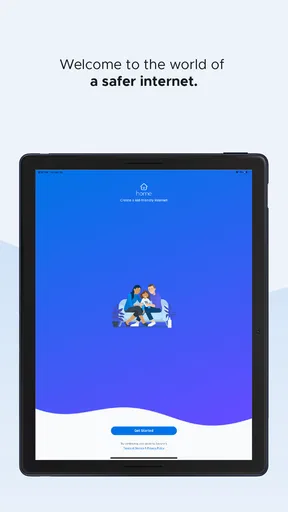

 Analysis by AppCompare
Parenting tools often promise peace of mind, but the useful ones are the apps that fit into a family’s routine without turning every online moment into an argument. After spending time with Securly Home, I see it as a straightforward way for parents to stay informed about their children’s online activity. It is a free parenting app from Securly Inc., aimed at families who want a clearer view of digital habits rather than another complicated dashboard to manage.
My first impression was that its value depends less on checking constantly and more on creating a sensible routine. The app is not a replacement for talking with a child about privacy, schoolwork, games, or social media. Instead, it works best as a shared reference point: I can use it to notice patterns, ask better questions, and decide when a family rule needs adjusting. That makes it more useful for involved parents than for someone looking for a completely automatic solution.
How Securly Home fits into a normal family routine
The basic workflow is easy to understand. I open the app when I want to catch up on what my children have been doing online, look for anything that needs attention, and then decide whether action is necessary. That sounds simple, but it is an important distinction. A monitoring app can quickly become stressful if it encourages a parent to react to every individual event. I found that Securly Home makes more sense when used at agreed times, such as after homework or before the evening routine, rather than as a live feed that demands constant attention.
A realistic example would be a weekday afternoon. My child comes home, uses a connected device for schoolwork, and later switches to entertainment. Instead of interrupting the session repeatedly, I can review the activity afterward and separate normal use from something worth discussing. If the pattern looks ordinary, I leave it alone. If the same concern appears repeatedly, I bring it up calmly. That approach turns the app into a conversation aid instead of a tool for suspicion.
This is where the app’s parenting focus matters. It is not presented as a general productivity tracker or a security scanner for every device in the house. Its purpose is to help parents remain informed about children’s online behavior. I would recommend it to families who already have household expectations and want a practical way to follow them. Parents who have not yet agreed on basic rules may find that the app exposes disagreements rather than solving them.
The first useful habit is to decide what information actually matters. A parent may care about late-night activity, distractions during study time, or repeated visits to unsuitable areas. Those concerns are different from wanting to inspect every detail of a child’s digital life. Before using the app regularly, I would write down two or three questions the family wants it to answer. That keeps reviews focused and reduces the temptation to treat every notification or activity item as a problem.
What I would check before relying on it
Setup and day-to-day results depend on how the family’s devices and accounts are arranged, so I would not assume that installing the parent app alone creates complete oversight. The connected environment has to be configured correctly, and the child’s normal devices need to be part of that arrangement. If a parent expects one installation to cover every route to the internet, disappointment is likely.
Worth Reading Before You Choose

EA SPORTS FC Mobile 26 Is a Bigger Football Game, but It Takes Time

Flipboard Shows What News Apps Must Do Beyond the Feed

Switching to Android Auto Means Rethinking Your Driving Routine

Google Calendar Makes a Crowded Week Easier to Manage

Ludo King Makes the Most of the Minutes Between Plans

Baby Panda World Brings Quick Play to Modern Phones, but Its Game Library Feels Busy
I would also make sure each adult who needs access understands the same routine. When one parent checks constantly and another never looks, children receive mixed messages and the app becomes part of the conflict. A shared agreement about when to review activity is more valuable than simply adding more checks. Securly Home works best when it supports a family policy that everyone understands.
The app is marked for Everyone, which makes it approachable for a broad audience, but that age label should not be confused with a recommendation that young children manage the tool independently. In practice, this is a parent-facing experience. I would keep the conversation age-appropriate and explain what is being monitored, especially with older children who are more likely to view hidden monitoring as a breach of trust.
Settings and choices worth reviewing early
My advice is to spend time examining the available controls before using them in anger. The most important question is not “How many restrictions can I turn on?” but “Which setting supports the rule we actually want?” A limit that is too broad can block legitimate school activity, while a rule that is too narrow may create a false sense of security. The right balance depends on the child’s age, device use, and level of independence.
I would begin with the quietest settings that address the real concern. If the problem is evening distraction, a family discussion about device times may be more effective than applying restrictions everywhere. If the problem is uncertainty about what a child is encountering online, reviewing activity first may be better than immediately blocking categories. This gradual approach gives parents a chance to understand the situation before changing the digital environment.
Another setting-related habit is to review changes after a child’s routine changes. School holidays, a new device, a different class schedule, or a new online hobby can all make an old arrangement less suitable. I would revisit the app after those transitions instead of assuming that the original configuration remains sensible. Experienced users treat monitoring settings as something to maintain, not something to set once and forget.
It is also worth checking whether the information shown matches the family’s expectations. Parents sometimes interpret a clean activity view as proof that nothing happened, when it may simply mean that the relevant device or account was not included in the setup they are using. I would verify the arrangement during ordinary use and avoid making serious accusations based on a single quiet period.
Faster patterns that reduce needless checking
The quickest way to get value from Securly Home is to create a repeatable review pattern. I would check at a predictable time, scan for changes rather than rereading everything, and note only items that affect a family decision. This takes less effort than opening the app whenever worry appears, and it produces a clearer picture over time.
A useful shortcut is to connect the review with an existing habit. For example, I might look after dinner on school nights and once during the weekend. The exact schedule is less important than consistency. When checking becomes routine, I am less likely to overreact to an isolated event or forget an issue that deserves follow-up.
I would also keep a simple mental distinction between information and intervention. Seeing online activity does not automatically mean I need to change a setting. Sometimes the correct response is a question: Was this for homework? Was the device shared? Did a friend send the material? That pause is one of the strongest ways to use the app responsibly. Monitoring without context can produce the wrong conclusion, while monitoring followed by a calm conversation can reveal what is really happening.
For families with more than one child, I would avoid comparing children’s activity directly. Different ages, school requirements, and interests make raw comparisons misleading. Instead, I would evaluate each child against the expectations agreed for that child. This is a non-obvious but important use pattern: the app can inform individual conversations, but it should not become a scoreboard between siblings.
I would use the current version, 5.7.1, while remembering that an app update does not remove the need to review the family’s own habits. New software can change how an interface feels, but it cannot decide which boundaries are fair. After updating, I would quickly revisit the screens and controls I use most often so that an unfamiliar layout does not lead to missed information or accidental assumptions.
Where the app is useful, and where it reaches its limits
Securly Home is strongest when a parent wants visibility and a manageable way to follow up. It can help identify patterns that are difficult to notice from casual observation, especially in a household where children use devices independently. It is also less intrusive than standing over a child’s shoulder, because the parent can review activity at a sensible time instead of interrupting every session.
That strength has a limit. No monitoring app can reliably explain intent on its own. A page opened for a school assignment may look different from the same page opened for another reason. A child may also use a device in a way that falls outside the parent’s expected setup. I would treat the app as evidence to discuss, not as a final verdict.
It is not the right choice for parents who want a complete digital safety suite with every possible family-management feature in one place. A more specialized alternative may be better for a household that needs extensive screen-time scheduling, detailed device administration, or broader controls across many platforms. Securly Home is more appealing when the priority is staying informed without building an elaborate technology project.
It may also be a poor fit for families that cannot agree on transparency. If a teenager discovers monitoring without understanding the reason, the result can be secrecy rather than safer behavior. I would introduce the app openly, explain what the parent is trying to protect, and define which conversations will follow from what is seen. That does not mean a child gets to approve every household rule, but it does mean the system is not presented as mysterious surveillance.
Privacy is another area where judgment matters. Parents should avoid sharing screenshots or activity details casually, even when they are concerned. Information about a child’s online life deserves the same care as other personal family information. The app can make details easier to access, so the adults using it need to be disciplined about who sees them and how they are discussed.
How it compares with ordinary alternatives
The usual alternative is simply checking the device directly. That can show browser history, app use, or visible activity, but it is often inconsistent and easy to turn into a confrontation. Securly Home offers a more parent-oriented way to stay informed, which is useful when the goal is a regular overview rather than an occasional inspection. The trade-off is that it still depends on correct setup and thoughtful interpretation.
Another alternative is relying on the child’s own report. That can work well in a trusting family, and I would not replace honest communication with software. However, children may forget details, underestimate risks, or feel embarrassed about an online experience. Having a neutral source of information can help a parent ask a more precise question. The best arrangement combines the app with trust-building rather than treating one as a substitute for the other.
Compared with a large parental-control package, Securly Home feels easier to approach. That can be an advantage for parents who do not want to manage a long list of technical options. The compromise is that families seeking highly specialized controls may prefer a broader product. I would choose this app for visibility and routine awareness, not because I expect it to solve every digital-parenting problem.
Practical answers before installing
One question many parents will have is whether it costs anything. The app is free, so trying it does not require a purchase decision. That makes it reasonable to test during a normal family week, provided the parent is prepared to evaluate whether the information is genuinely helping. Free access does not remove the need to invest time in setup, discussion, and regular review.
Another likely question concerns device compatibility. The listed minimum operating system is iOS 9, so users on very old Apple devices should consider that requirement before planning a family rollout. On supported devices, I would still test the arrangement with the devices the children actually use, rather than assuming that the parent phone alone tells the whole story.
Parents may also wonder whether the app is suitable for every age. Its Everyone content rating makes it broadly accessible, but the parenting approach should change as children grow. With a younger child, the adult may set clearer boundaries and explain them simply. With an older child, the emphasis should shift toward shared expectations, context, and increasing independence. The same app can support both situations, but the conversation around it cannot remain the same.
Finally, I would ask whether a high rating means the app will fit my household. Its average rating is 4.4 from around 1,400 ratings, with roughly 225 written reviews, and it has passed 100,000 installs. Those figures suggest that many people find it useful, but they cannot predict how well a particular device setup or family agreement will work. I would treat them as a reason to consider the app, not as a substitute for a short, practical trial.
My verdict after using it as a parenting tool
Securly Home is a sensible choice for parents who want a clearer view of children’s online activity and are willing to combine that information with conversation. I like its strongest idea: monitoring is most useful when it helps a parent notice patterns and respond thoughtfully, not when it encourages constant checking. The free price and approachable parenting focus also make it easy to evaluate without a major commitment.
My recommendation comes with clear conditions. Set expectations before relying on the app, check that the family’s devices are properly included, review activity on a repeatable schedule, and investigate context before changing rules. Do not compare siblings, treat a quiet report as absolute proof, or use every discovery as a reason for punishment. Those habits determine whether the technology builds awareness or simply increases tension.
For a parent who wants a focused way to stay informed, Securly Home is worth trying as part of a broader family routine. It is less suitable for someone seeking a complete, highly customizable control center or a tool that can parent automatically. In my experience, its real value appears when the app stays in the background: I use it to understand what is happening, then rely on clear boundaries and honest conversations to decide what happens next.
Pros
- Blocks inappropriate websites and content on connected devices.
- Parents can manage rules and schedules from a mobile dashboard.
- Activity insights help identify browsing patterns and potential concerns.
- Supports custom allowlists and blocklists for more control.
- Useful notifications can alert parents when restrictions are triggered.
Cons
- Some features may require a compatible Securly school or home setup.
- Filtering can occasionally block legitimate websites by mistake.
- Older devices may experience delayed rule updates or connection issues.
- Children may find ways around controls using mobile data or VPNs.
- Advanced monitoring features may raise privacy concerns for families.
FAQs for Securly Home
What is Securly Home and who is it designed for?
Securly Home is a parental-control companion app designed to help families manage and monitor a child’s school-issued or managed device outside the classroom. Depending on the school’s Securly setup, parents may be able to review activity reports, set internet access schedules, pause browsing, and receive alerts. Its exact features can vary, so access usually depends on the child’s school subscribing to compatible Securly services.
Can I use Securly Home without my child’s school providing Securly?
In most cases, Securly Home is not a standalone monitoring app that works with any device immediately after installation. A parent generally needs an invitation, login, or account connected to a participating school or organization using Securly’s services. Before downloading, check with the school or district to confirm that Securly Home is supported, which devices are covered, and what parental controls have been enabled.
What can parents monitor or control with Securly Home?
The available controls depend on the school’s Securly products, device configuration, and account permissions. Common options may include viewing browsing activity, receiving safety or policy alerts, pausing internet access, creating bedtime or study schedules, and managing access during specific periods. The app may not display every activity or control every application, especially when a device is offline or outside the school’s managed environment.
Does Securly Home monitor my child’s device all the time?
Securly Home can provide visibility into activity on a managed device, but monitoring is not necessarily continuous or unlimited. Reports may depend on internet connectivity, the device operating system, installed management software, and school policies. Some apps, private content, or offline activity may not appear. Parents should review the school’s privacy information and discuss monitoring expectations with their child before relying on the app.
Is Securly Home free, and what should I check before installing it?
Parents typically do not purchase Securly Home as an independent subscription when it is provided through a school, but availability and included features are determined by the school or district’s Securly plan. Before installing, confirm the official developer, supported Android or iOS version, required school credentials, and device compatibility. Also review permissions and privacy terms so you understand what information may be collected and shared.


